
Find technical roadblocks.
A page can load for you and still send confusing signals to a crawler. Inspect response codes, indexability and rendered content.
Check indexability Audit JavaScript rendering Set crawl scope and speedFind technical SEO issues, connect keywords to pages, and investigate AI visibility in one native Mac app. See the affected pages, decide what to change, then check your work.
macOS 15+ · Paid subscription required · Compare plans
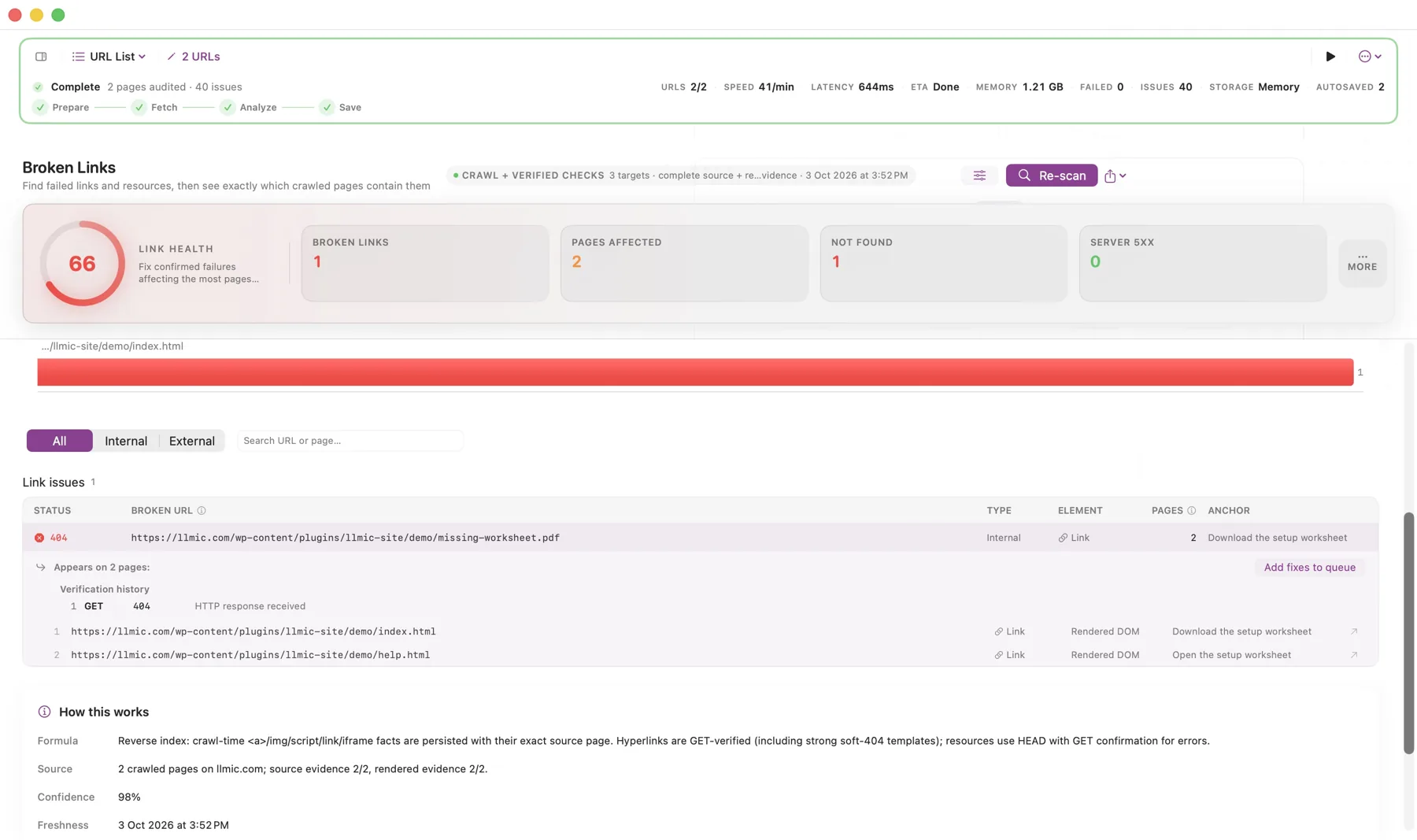
The first scan found one failed destination used on two pages. We repaired the website links, then checked the same scope again.
Two source pages. Three targets. Four link occurrences. Those stayed constant in both runs.
Inspect the captures and methodFollow a real, controlled audit from finding to fresh verification. No account needed to explore.
LLMIC confirmed one 404 linked from two pages. The finding includes the source URLs and anchor text, so you can see exactly where the broken journey starts.
Actual LLMIC capture · 3 October 2026 · Controlled two-page demonstration.
We changed both source links from missing-worksheet.pdf to the working setup-worksheet.html page and updated their wording. LLMIC identified the issue; the website edit was made separately.
Fix the reader’s destination and the promise in the link text together. A successful HTTP response alone does not tell you whether a replacement is useful.
The fresh scan found zero broken destinations and zero affected source pages. Both runs checked the same two source URLs, three unique targets and four link occurrences.
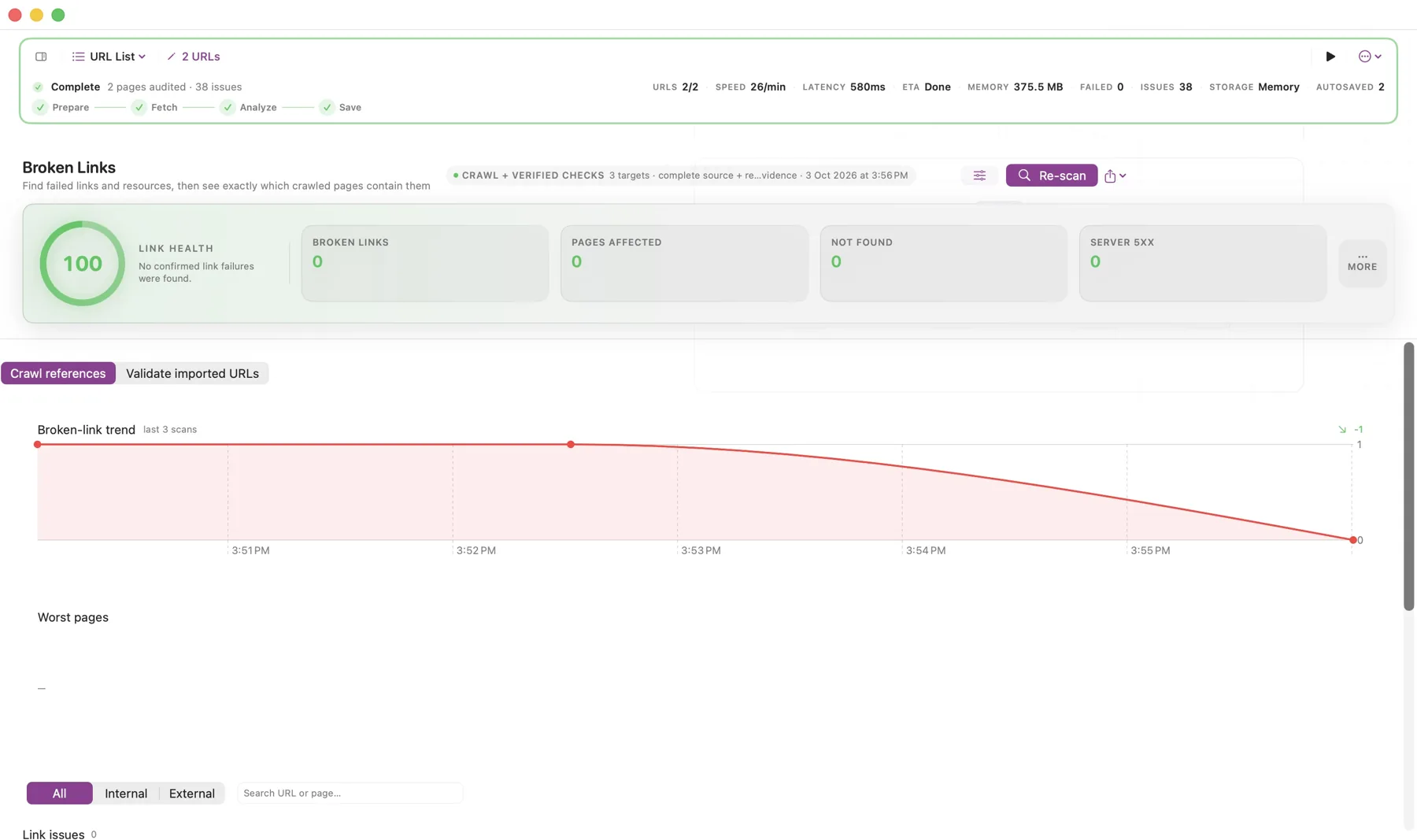
Internal links only; external links and resources excluded. This demonstrates a repair check, not a ranking, traffic or customer revenue result.
The sample is a summary of this controlled test. It contains no customer data.
Choose a task. See the method before you change your website.
A page can load for you and still send confusing signals to a crawler. Inspect response codes, indexability and rendered content.
Check indexability →Audit JavaScript rendering →Set crawl scope and speed →Turn a keyword plan into a page-level review. Check placement, question coverage and heading structure before briefing your editor.
Map keywords to content →Review heading structure →Find unanswered questions →A warning count is a starting point. Find the page containing the failed link, understand its purpose and choose a useful replacement.
Find broken links →Inspect source pages and redirects →Find internal linking opportunities →Keep website readiness separate from measured answers. Review the prompts, returned responses and citations behind an observation.
Understand AI visibility →Run a controlled benchmark →Review cited sources →Some guides describe development-build workflows. Check the public release notes and plan limits before subscribing for a specific feature.
Follow the evidence through three steps. Open each one to see what LLMIC records, what you review, and how to check the published change.
Start with a website crawl. Inspect the URLs, responses, links and page content captured in that run. Add supported Google or AI provider connections when the question needs evidence beyond the crawl.
Open the affected page and examine the observed issue. A missing destination, repeated heading and AI citation are different kinds of evidence. Keep their meaning and limitations visible before assigning a task.
Organize the work and review supported fix drafts. Your team controls publication. After a change is deployed, collect fresh evidence; a completed task alone does not prove the page changed.
A reader clicks a setup worksheet and reaches a missing file. The useful handoff names the linking page, its anchor, the failed destination and the approved replacement.
Our five-part field guide follows that repair from discovery to a fresh check. It includes an interactive preparation checklist and a blank CSV template your team can use.
Website audit software can show what it observed. It cannot guarantee Google indexing, higher rankings or a citation in every AI answer. LLMIC keeps local checks, connected data and generated suggestions in context.
Core audit data stays on your Mac. Account and billing services run online; external providers receive the requests you choose to make. Read the details before connecting an account.
Download the Mac app, sign in and activate a subscription. Compare the current features and limits before choosing your plan.
Core technical SEO, content and link tools for one website, with standard reporting.
Compare Solo and ProMore websites, AI intelligence, supported Google integrations and advanced workflows.
See Pro features and limitsPaid access. No automatic free trial. Optional provider charges are separate. Final pricing, tax and renewal details appear in checkout.
Use the documentation for product steps, the Journal for practical methods, and the topic sitemap to find related subjects.
Open only what you need. Each answer explains the practical boundary as well as the next step.
Still unsure? Ask us →LLMIC is a native macOS workspace for crawling websites, reviewing technical and content evidence, researching AI visibility, and preparing fixes for human approval.
LLMIC is built for site owners, independent SEO specialists, in-house teams, and agencies that need evidence they can inspect before changing a website.
The app includes crawl, indexability, metadata, heading, duplicate-content, link, structured-data, content, and related audit workflows. Available limits and advanced tools depend on the selected plan.
Pro workflows can run measured prompts with supported providers and record mentions, citations, sources, and failed checks. Results describe the tested prompt, provider, model, place, and time.
Yes. The installer can be downloaded without payment, but an active Solo or Pro subscription is required to use the workspace. There is no automatic free trial.
No. LLMIC measures crawl evidence and research observations, then helps you review possible actions. Search engines and AI providers decide their own results.
Core crawl analysis is designed to run in the native Mac app. Features that use Google, AI, or other providers make the external requests described in the relevant workflow and use the credentials you connect.